Pickleball Leagues: Branded Stripe Receipts in Five Minutes
Pickleball Leagues: Branded Stripe Receipts in Five Minutes

Custom payment receipts are Stripe-generated, branded electronic receipts sent to players after a successful registration payment. Get them working in about five minutes: turn on “Successful payments” under Customer emails and set your Branding with your league logo and colors. That single setup step controls what players see on receipt emails, invoice PDFs, and the Stripe customer portal.
TL;DR:
- Properly branded Stripe receipts require uploading your logo and setting brand colors in the dashboard, a process that takes under 20 minutes.
- The branding displayed on receipts depends on the charge type and account configuration, especially when using Stripe Connect, which may show different logos.
- Invoices are necessary only if your league needs detailed line items or complex billing; simple registration fees are sufficiently handled by receipts.
- Automatic receipt emails must be enabled in Stripe settings, and resending lost receipts is straightforward through the transaction history.
- Ensuring correct branding setup and testing transactions before registration opening helps prevent months of mismatched logos or missing receipts.
Table of Contents
- What Do Branded Stripe Receipts Actually Do for Your League?
- How Do You Enable and Customize Branded Receipts in Stripe?
- How Does Stripe Connect Affect Receipt Branding on Your Platform?
- Invoices vs Receipts: Which One Does Your League Actually Need?
- What Do You Do When a Receipt Gets Lost or a Player Disputes a Charge?
- A Publisher’s Take on Stripe Receipts and League Admin
- Set Up Branded Receipts Without the Manual Work
- Key Stripe Docs and Flex League Plus Resources Worth Bookmarking
- Sources
What Do Branded Stripe Receipts Actually Do for Your League?
A Stripe receipt confirms one thing: the payment went through. But the details around that confirmation matter more than most organizers realize. Stripe automatically sends email receipts for successful payments and refunds, and every receipt includes both a hosted URL and a downloadable PDF, so players have proof of payment without emailing you for it.
That saves you from becoming an unpaid customer service desk every registration cycle. Here’s what a properly configured receipt gives you:
- Automatic confirmation emails the moment a registration payment clears, with no manual step on your end.
- Refund receipts sent the same way, so cancellations don’t turn into “did my refund actually happen” messages.
- A downloadable PDF players can save for tax records, reimbursement requests, or their own bookkeeping.
- Branding elements (your icon, logo, brand color, and accent color) applied consistently across every receipt.
- Itemized line items when you use invoices instead of plain receipts, useful for multi-fee registrations.
Pro Tip: A receipt with your league’s logo and colors reads as a real organization, not a stranger charging a card. That distinction affects whether a player disputes a charge or just emails you first.
Branding consistency does more than look nice. Organizations that maintain consistent visual identity across their communications tend to generate more trust and fewer friction points with the people they bill, according to branding guidance from WIPO applied to sports organizations. For a league charging a moderate registration fee per player per season, a receipt that looks thrown together invites second-guessing. One that matches your website and your league app doesn’t.
How Do You Enable and Customize Branded Receipts in Stripe?
You don’t need a developer for this. Everything happens in the Stripe Dashboard, and most of it takes less time than setting up a single league division.
- Turn on automatic receipts. Go to Dashboard → Settings → Business → Customer emails, and toggle on “Successful payments.” Without this switch, Stripe won’t send receipt emails even if every other setting is perfect.
- Upload your branding assets. Under Branding your Stripe account, add your league icon and logo. Files need to be JPG or PNG, under 512kb, and at least 128x128 pixels. Anything smaller looks pixelated on a receipt PDF.
- Set your brand and accent colors. These carry through to receipts, invoices, and the hosted customer portal, so pick colors that match your league’s actual website or jerseys, not just whatever’s convenient.
- Decide between receipts and invoices. If you need itemized detail for reconciliation, switch to invoices and add custom invoice fields for things like season code or division name.
- Run a test payment. Use Stripe’s test mode to process a dummy registration and check how the receipt renders in email, on the hosted page, and in the PDF download.
Pro Tip: Test after every branding change, not just the first time. A logo that looks fine in the dashboard preview sometimes crops oddly once it hits an actual PDF layout.
The whole sequence usually takes under 20 minutes, and it’s a one-time setup unless you rebrand your league mid-season.
How Does Stripe Connect Affect Receipt Branding on Your Platform?
If you’re running registrations through a league-management app instead of a standalone Stripe account, branding gets more complicated, and this is the part most organizers overlook until a player emails asking why the receipt shows the wrong logo.
The charge type determines whose branding shows up. According to Stripe’s Connect documentation, destination charges and separate charges with transfers use the platform’s branding, while direct charges use the connected account’s branding instead. That means the same league, processing payments the same way, could show different logos depending on which charge type the underlying software uses.
For Express or Custom connected accounts that don’t log into the Stripe Dashboard directly, the platform has to configure branding through the accounts API, specifically the settings.branding object, so the connected account’s colors and logo actually appear on receipts rather than a generic default.
Before you assume your branding is live, run through this:
- Confirm which account type and charge type your league platform uses for registration payments.
- Update Branding settings on whichever account (platform or connected) actually controls the receipt.
- Pass
receipt_emailand invoice data explicitly in API calls if your platform builds custom checkout flows. - Process one real test transaction and check the receipt end to end.
Skipping this check is how leagues end up sending receipts branded with someone else’s logo for months without noticing.
Invoices vs Receipts: Which One Does Your League Actually Need?
A receipt confirms a payment happened. An invoice is a statement, something you send before or alongside payment that can carry line items, payment terms, and a reference number your treasurer can actually use. Most single-registration leagues never need invoices. Some absolutely do.
Stripe invoicing supports up to four custom fields, plus a footer text block and default payment terms. That matters if you’re trying to reconcile who paid for what, especially with team-based formats like FLP teams where one captain might pay for four players at once.
Here’s the practical split:
- Use receipts for straightforward single-player registration fees where “paid” is the only fact that matters.
- Use invoices for season-long fees split across multiple payments, or team billing where one payer covers several rosters.
- Add custom fields like player ID or season code to invoices so your reconciliation doesn’t depend on memory.
- Set default payment terms on invoices for recurring facility fees or multi-week clinic series, so players know when the balance is due.
If you’re only ever charging a flat $50 registration fee once per season, a receipt does the job. The moment billing gets more complicated than that, invoices earn their extra setup time.
What Do You Do When a Receipt Gets Lost or a Player Disputes a Charge?
Automatic receipts fail sometimes, usually because of a spam filter, a typo in the player’s email, or a setting that got flipped off during a Stripe dashboard update. When that happens, you don’t need to refund and rebill. You resend.
- Go to Dashboard → Transactions → Payments, and find the specific payment in question.
- Open the payment’s Receipt history.
- Click Send receipt. Stripe lets you send it to multiple recipients by separating email addresses with commas, useful if a co-captain also needs a copy.
- If the resend still doesn’t land, check whether “Successful payments” emails are enabled, then check the player’s spam folder before assuming something’s broken.
Pro Tip: Add a second recipient (yourself or a co-organizer) on high-value registrations. If a player claims they never got a receipt, you’ll have your own copy timestamped and ready.
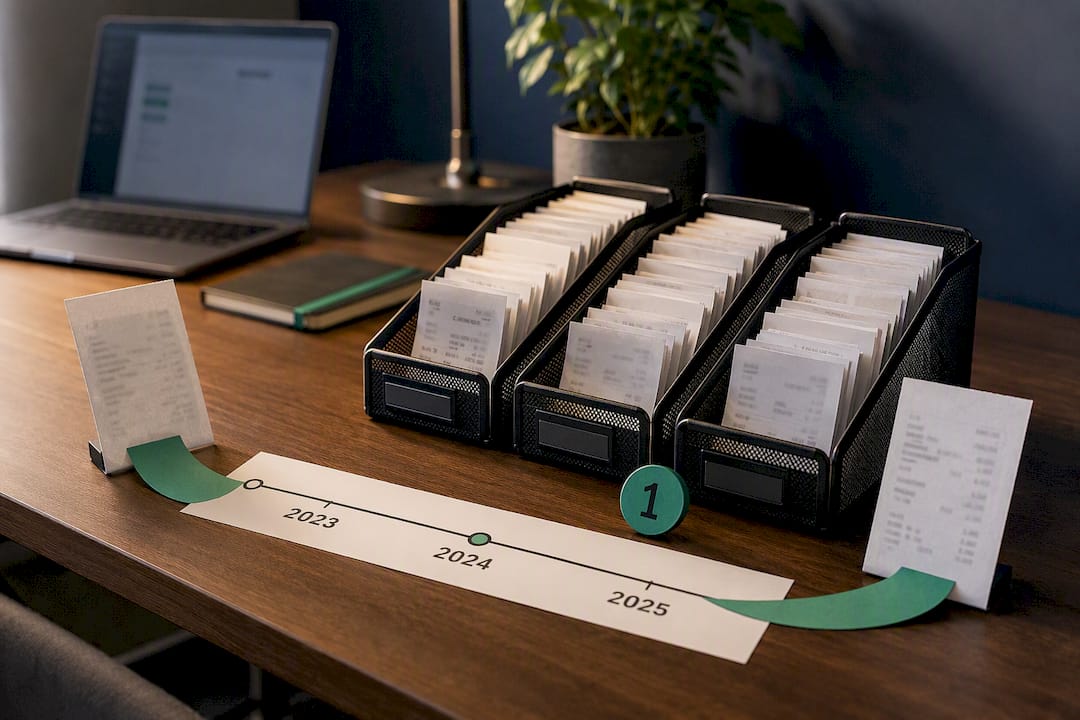
Keep every receipt PDF and its unique receipt number somewhere organized, not scattered across email threads. Most clubs treat three years as a reasonable minimum for payment recordkeeping, which lines up with common accounting and audit expectations. If a player disputes a charge with their bank six months later, a saved PDF with a receipt number settles it faster than digging through Stripe’s dashboard under pressure.
A Publisher’s Take on Stripe Receipts and League Admin
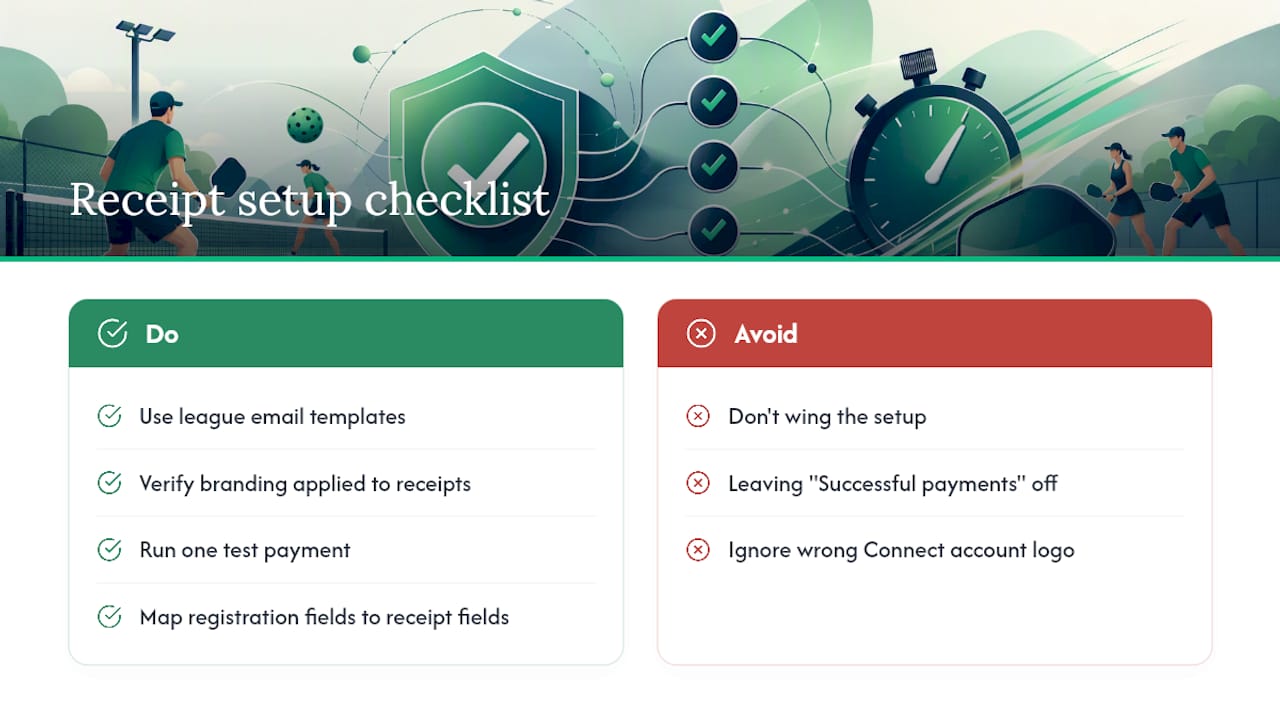
Most of the receipt problems we see aren’t Stripe problems. They’re setup problems: branding never configured, “Successful payments” left off by default, or a Connect account quietly showing the wrong logo for months. Some platforms map registration data directly to receipt and invoice fields, so a player’s division, season, and fee show up clearly rather than being buried in a generic transaction ID.
If you’re setting this up for the first time, don’t wing it. Check our league email templates for the messaging that pairs with automatic receipts, verify your branding actually applied, and run one test payment before your registration window opens. Cheap insurance against a season’s worth of “where’s my receipt” emails.
— Robert
Set Up Branded Receipts Without the Manual Work
Certain platforms offer organizers an option to have Stripe’s receipt and branding tools working correctly from day one, without piecing together dashboard settings between running divisions and fielding player questions.
Some platforms connect directly to Stripe, so registration payments generate automatic, branded receipts and invoice PDFs tied to the league’s actual data, not a generic transaction log. If you’re budgeting for the season, our breakdown of Stripe fees for leagues covers what processing actually costs, and our city league payments setup guide walks through the full registration flow start to finish. Getting your logo and colors receipt-ready is worth doing right the first time. A partner resource on preparing team artwork for print and digital use is a solid reference if your league logo needs cleanup before upload.
Take a look at pickleball league software built around registration and Stripe-powered payments, or head to Flexleagueplus to request a demo and see the receipt setup in action before your next season opens.
Key Stripe Docs and Flex League Plus Resources Worth Bookmarking
- Stripe receipts documentation for automatic sending and resend flows.
- Branding your Stripe account for logo and color requirements.
- Customize invoicing for custom fields and payment terms.
- How to collect league fees for broader registration setup guidance.